Hi,
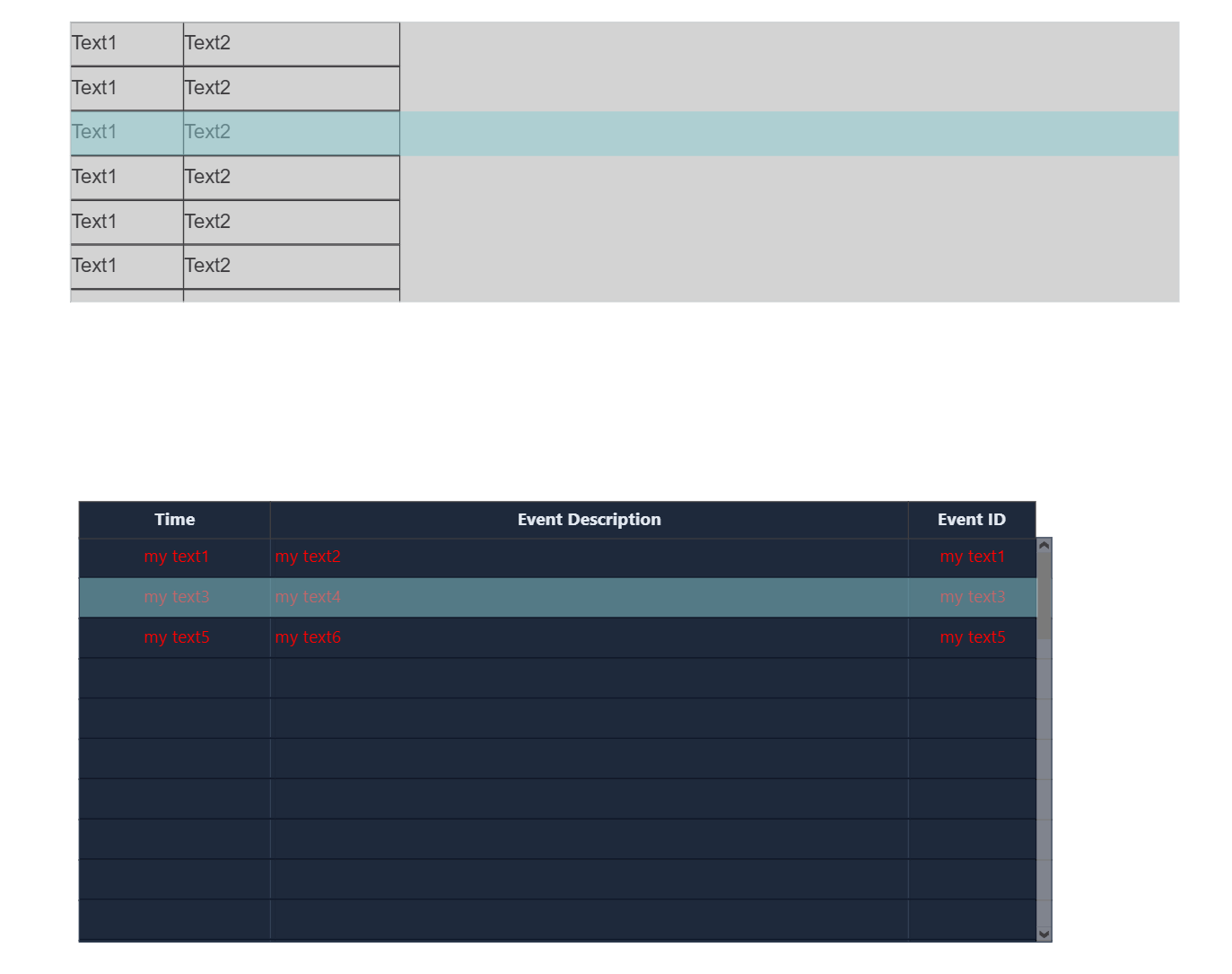
I’m building HMI using symbol list. Do you know how the highlighted(selected) row color can be adjusted by user?
You can see the below examples: depending on backgournd color and font color, a suitable “fill“ color of the highlighted row is necessary, otherwise in some cases it’s hard for operator to see clearly what are the words when he clicked on that row. It seems by default it’s this “cyan-green” kind of color.
Thank you for your help and look forward to your reply.
Best regards
Kevin
Hi Kevin
Unfortunately, there is no option to change this directly in PLCnext Engineer.
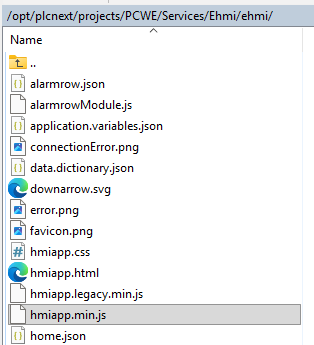
However, I did some testing and found an (unofficial) loophole to change this highlighting color. When downloading a project to the PLC, it will write the project files in this PCWE folder. In there, you will find the Ehmi files as well:
The hmiapp.min.js-file is the one containing the concerning highlight color. To edit this file, you need root rights.
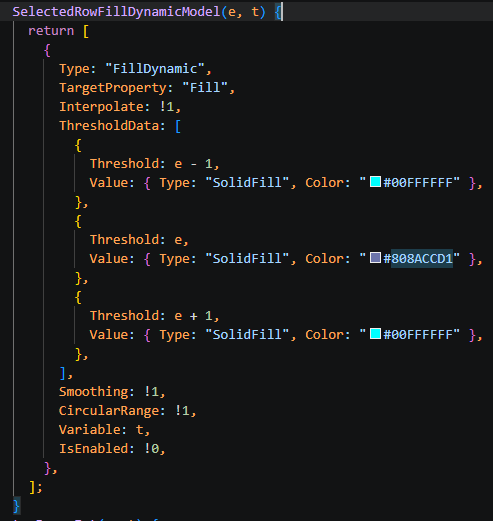
Below you can see a part of the file. I formatted it to increase the readability here.
Once opened, you can search for “808ACCD1”, as this is the value used for highlighting.
It only occurs once, so you could use a replace function.
In my case I changed it to “80FFA500”, which is semi-transparent orange.
Below a before and after:


Note that when a complete redownload of the project will overwrite this and you will probably have to edit this again afterwards. I hope this helps & can be a temporary solution.
Best regards
Mathieu
Hi Mathieu,
Thank you so much for your reply and already so thoroughly tested!
I will give it a try.
Indeed the overwriting of this file every time after project downloading is one extra step. But better than nothing.
Thank you again. I love this forum.
Best regards
Kevin
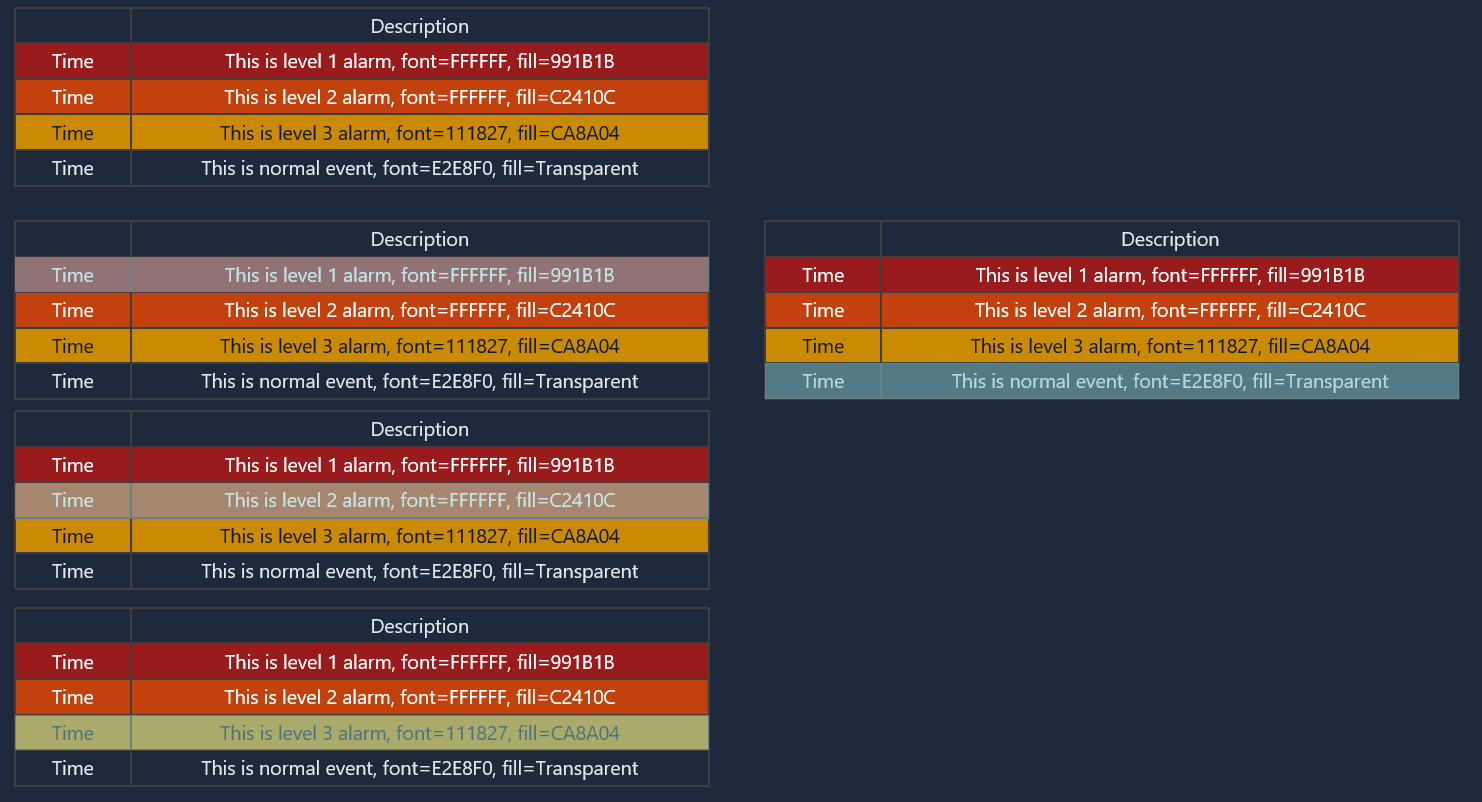
To people who also came across this issue. I came up with another solution, in which you need to combine font color + fill color dynamics to accommodate the unchanged highlight color. I have tested this combination in my case:
The 1st table being without highlights color, the rest of the four being each row under highlight mode.
Although not perfect, but better than before. You can try more color combinations in PowerPoint first to have a look, then build in PLC.
BR
Kevin